본 포스트는 2024년 Google Study Jam을 공부하면서 개인적으로 내용을 정리한 포스트 입니다.
Cloud Monitoring - Task 1. Create a Compute Engine instnace
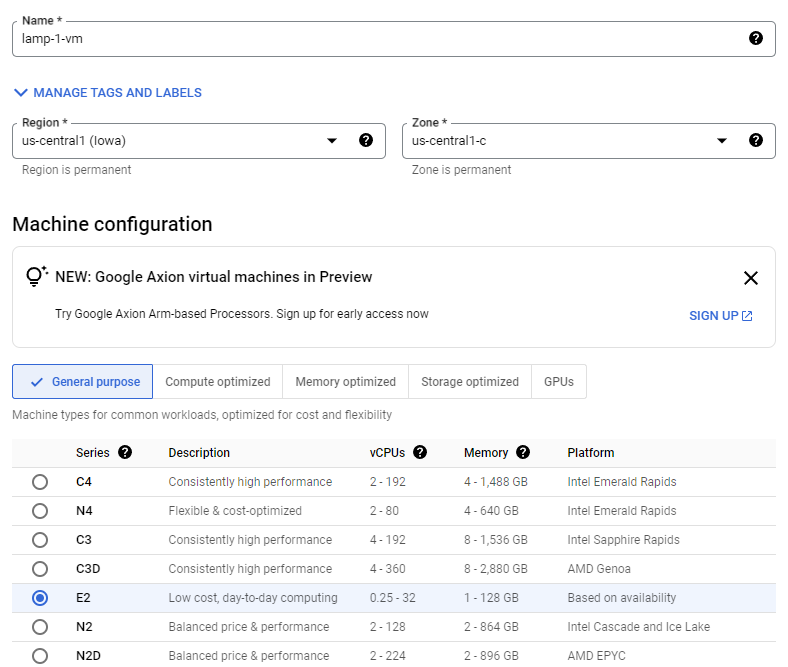
Navigation menu > Compute Engine > VM instances > Create instance에서 인스턴스를 만든다.
| Field | Value |
| Name | lamp-1-vm |
| Region | REGION |
| Zone | ZONE |
| Series | E2 |
| Machine type | e2-medium |
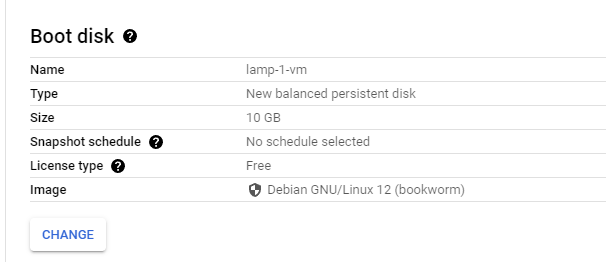
| Boot disk | Debian GNU/Linux 12 (bookworm) |
| Firewall | Check Allow HTTP traffic |

Cloud Monitoring - Task 2. Add Apache2 HTTP Server to your instance
SSH를 눌러 lamp-1-vm의 터미널을 연다.
다음 명령어들을 입력해 APache2 HTTP Server를 세팅한다.
sudo apt-get update

sudo apt-get install apache2 php7.0

sudo service apache2 restart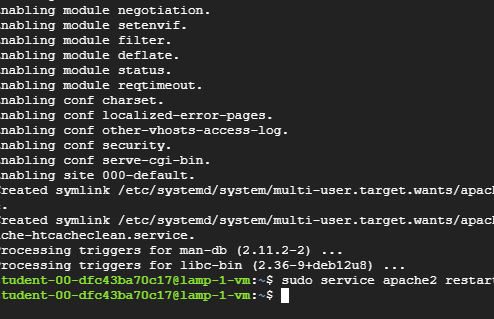
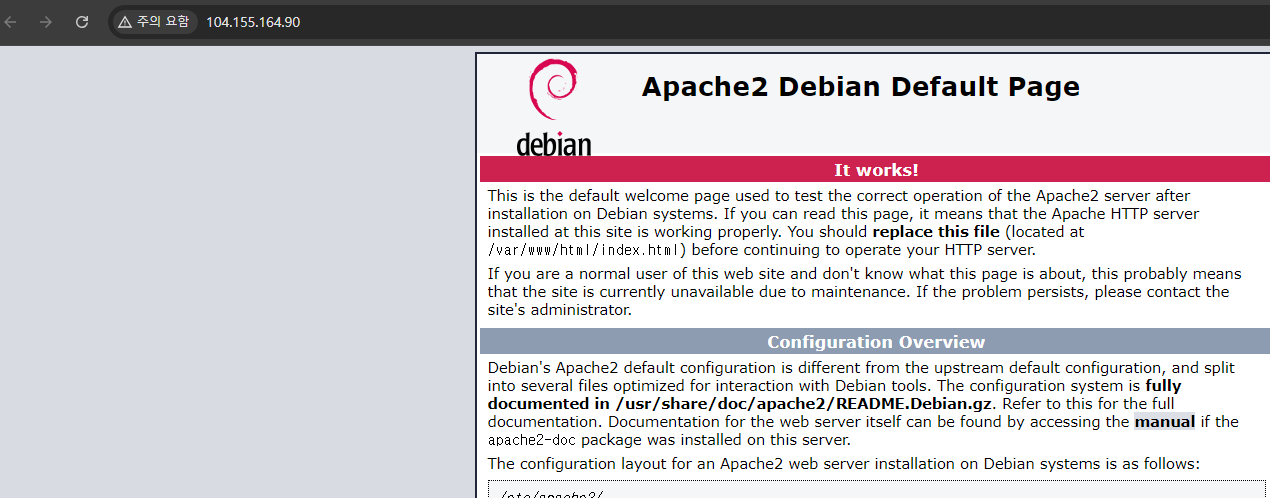
다시 콘솔로 돌아와서 lamp-1-vm의 External IP를 누른다.
Navigation menu > View All Products > Observability > Monitoring > Overview로 이동
Cloud Monitoring 문서 | Google Cloud
Google Cloud 및 Amazon Web Services의 모니터링 데이터를 사용할 수 있도록 합니다.
cloud.google.com
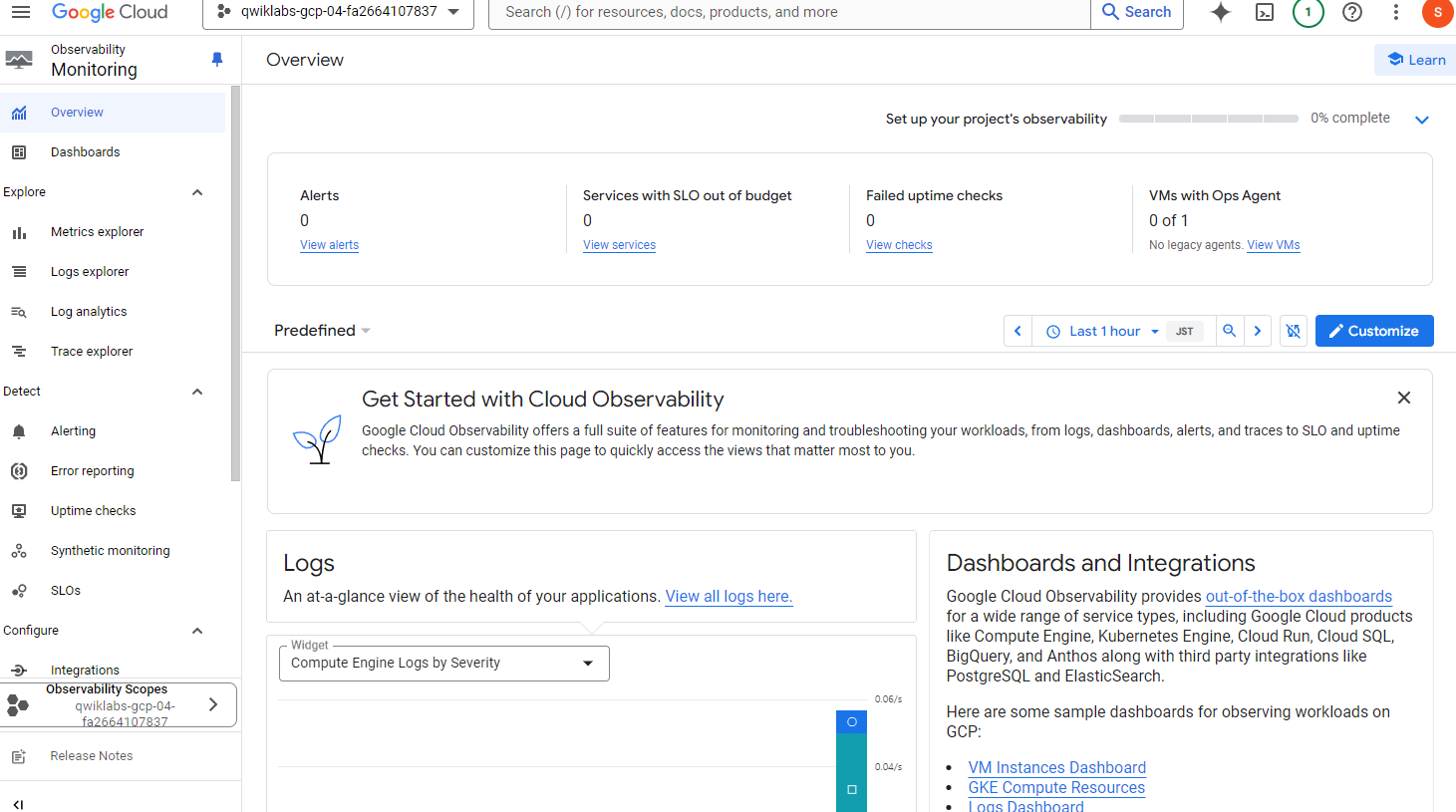
Cloud Logging agent를 설치해서 모니터링한다.
다음 명령으로 Cloud Monitoring agent를 설치한다.
curl -sSO https://dl.google.com/cloudagents/add-google-cloud-ops-agent-repo.sh

sudo bash add-google-cloud-ops-agent-repo.sh --also-install
Cloud Logging agent를 확인
sudo systemctl status google-cloud-ops-agent"*"

sudo apt-get update
Cloud Monitoring - Task 3. Create an uptime check
Cloud Console에서 Uptime checks > Create Uptime Check를 누른다.
- Protocol : HTTP
- Resource Type : Instance
- Instance : lamp-1-vm
- Check Frequency : 1 minute

Continue 계속
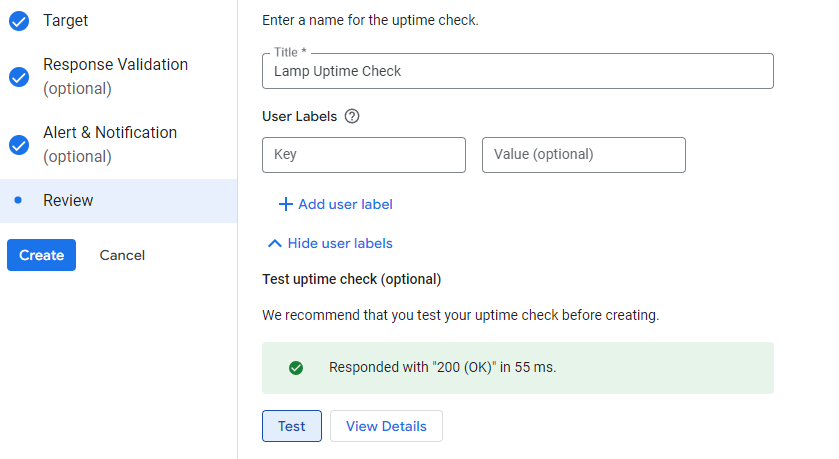
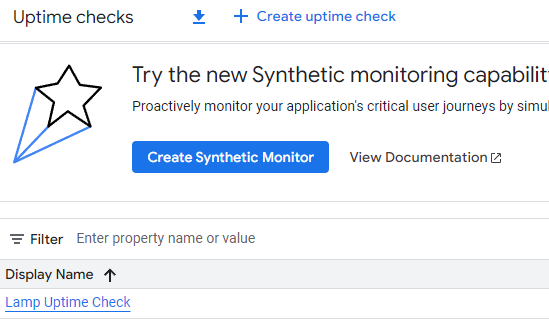
Title은 Lamp Uptime Check를 선택하고 Test 후 초록색으로 되면 Create를 누른다.
Cloud Monitoring - Task 4. Create an alerting policy
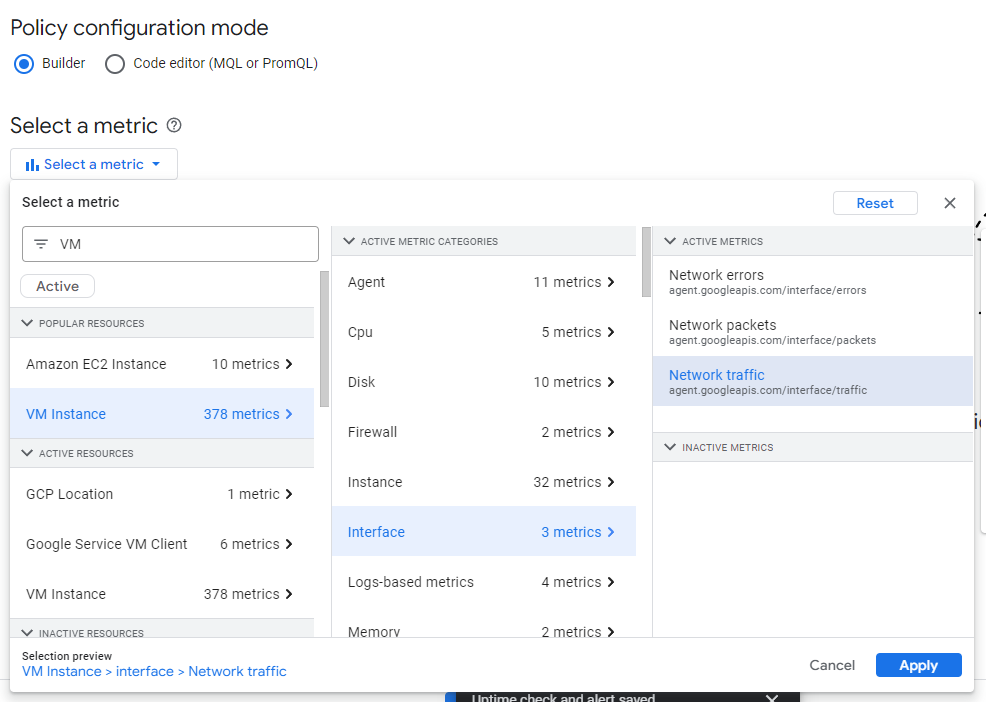
Cloud Monitoring > Alerting > Create Policy를 누르고 Select a metric 드롭 다운에서 Active를 체크 해제한다.

VM instance > Interface에서 Network traffic 필터를 누르고 Network traffic(agent.googleapis.com/interface/traffic)을 선택하고 적용한다.
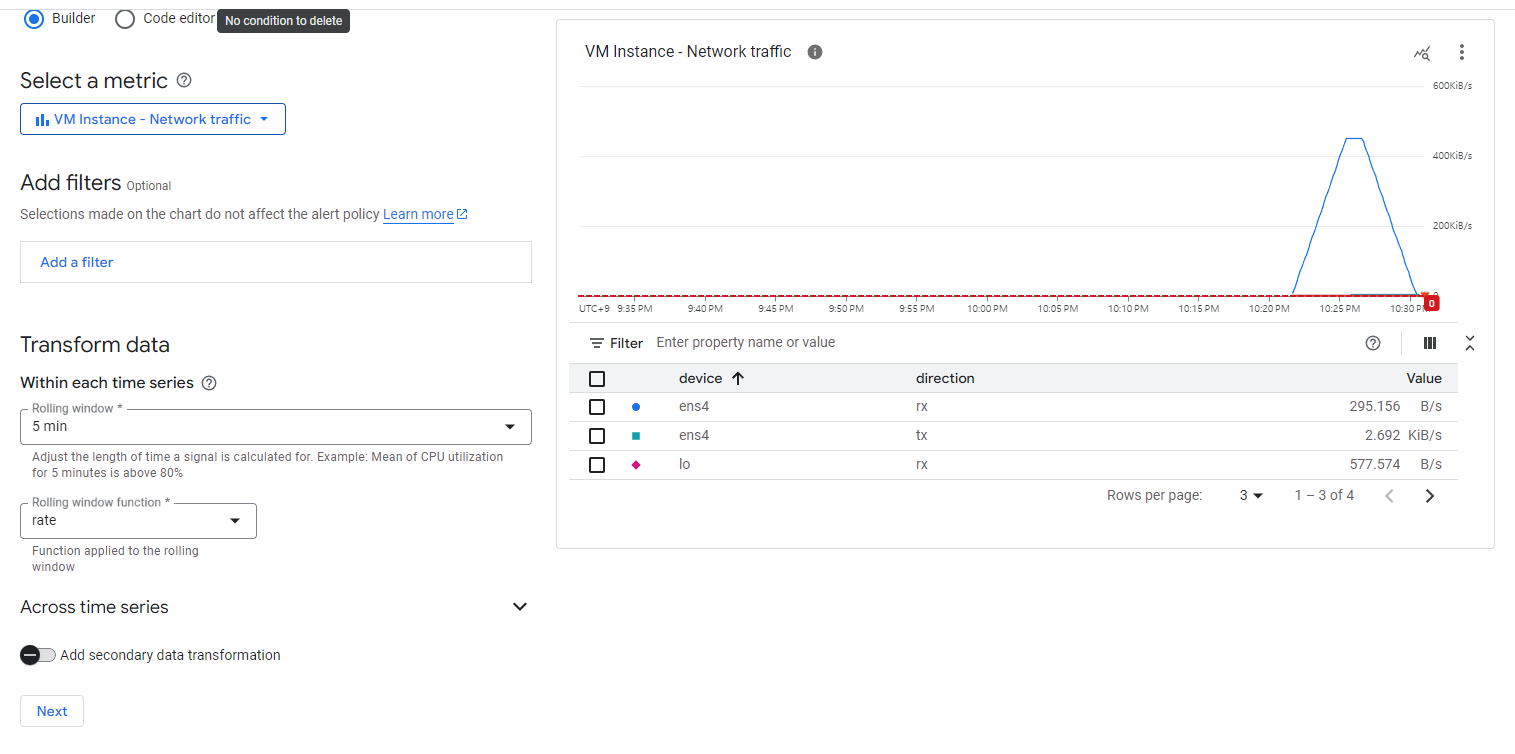
Next를 누른다.
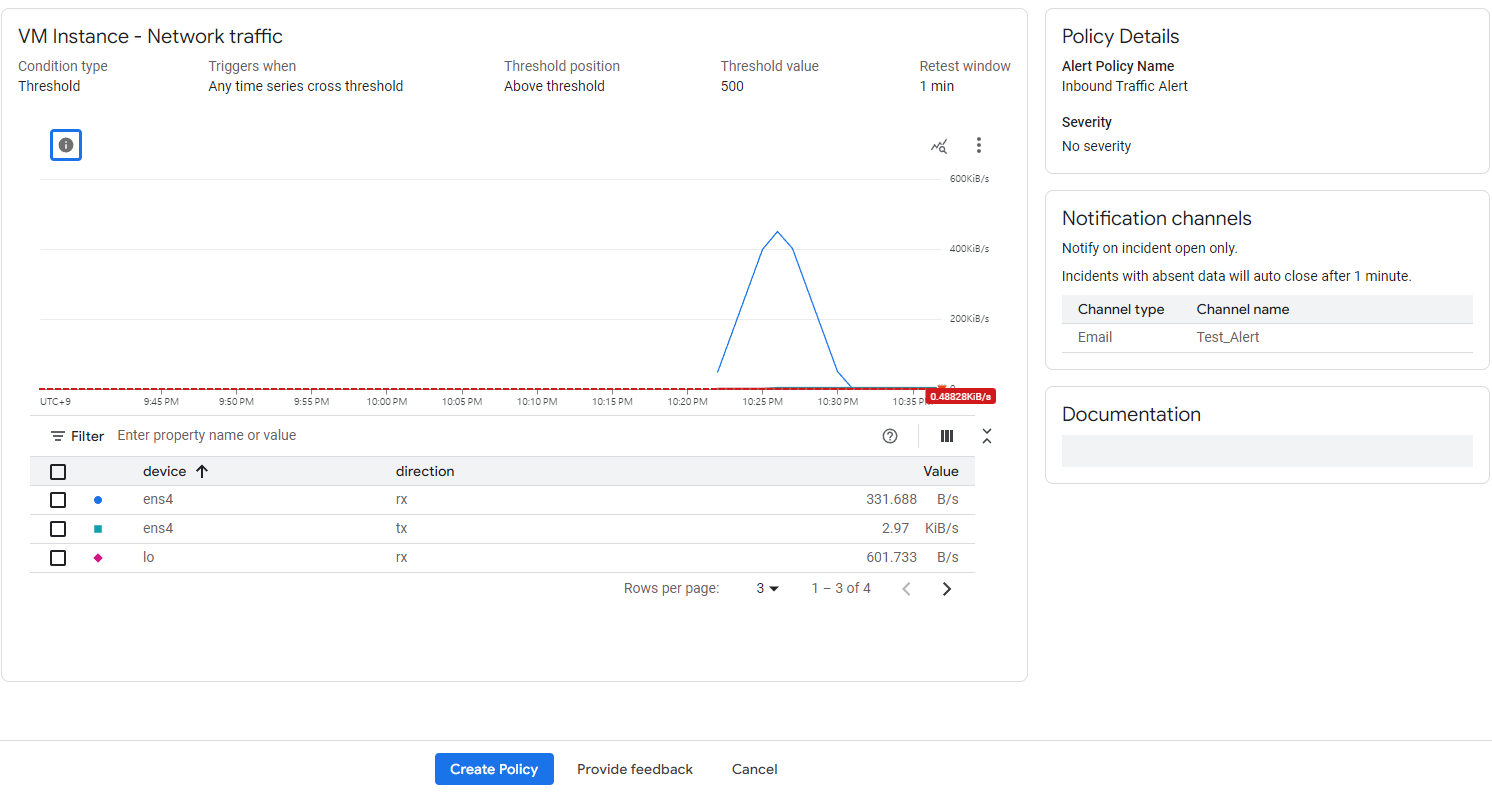
Threshold position을 threshold 이상으로 하고 thresholod value는 500, Advanced Options > Retest window 1 min를 하고 Next를 누른다.

Notification Channels의 옆에 드롭다운 arrow에서 Manage Notification Channels를 클릭한다.
Notification channel page에서 다음을 수행한다.
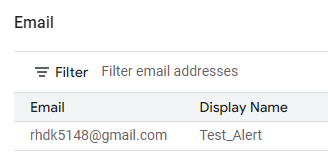
- ADD New : Email
- Create Email Channel dialog box에 Email Address에 <email 주소>를 넣고 Display name을 입력하고 저장한다.
- Create alerting policy tab에 Notification Channels를 다시 누르고 Refresh icon을 누른다.
- Alert name: Inbound Traffic Alert
- Next > Create Policy



Cloud Monitoring - Task 5. Create a dashboard and chart
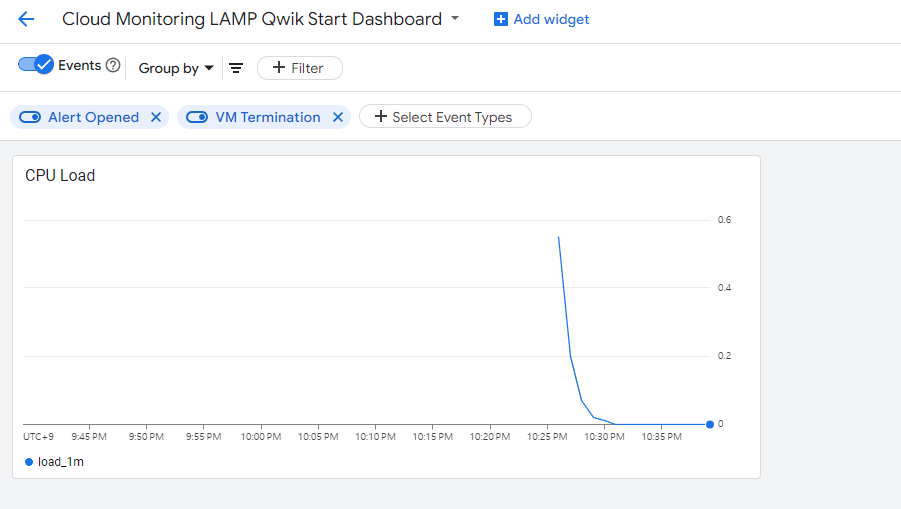
대시보드에서 +Create dashboard에서 Cloud Monitoring LAMP Qwik Start Dashboard
- +ADD WIDGET
- Add widget에 Visualization에서 Line 선택
- Widget title : CPU Load
- Select a metric dropdown에서 Active를 체크 해제
- 필터에 리소스 및 메트릭 이름에 CPU Load (1m)를 입력하고 VM instance > CPU를 클릭하고 CPU load(1m) 하고 Apply 클릭.
- Tab을 Refresh하고 graph를 본다.
두번째 차트를 추가
- +ADD WIDGET
- Add widget에 Visualization에서 Line 선택
- Widget title : Received Packets
- Select a metric dropdown에서 Active를 체크 해제
- 필터에 리소스 및 메트릭 이름에 Received packets를 입력하고 VM instance > Instance를 클릭하고 Received packets하고 Apply 클릭.
- Tab을 Refresh하고 graph를 본다.

Cloud Monitoring - Task 6. View your logs
Navigation menu > Logging > Logs Explorer > Resource를 누른다.
Resource drop down menu에서 VM Instance > lamp-1-vm을 선택하고 Apply
Navigation menu > Compute Engine > VM instance를 새창에 연다.
lamp-1-vm 인스턴스를 중단 시키고 Logs View에서 Log를 확인한다.


VM instance에서 Start/resume을 클릭하고 log messages를 모니터링한다.


Cloud Monitoring - Task 7. Check the uptime check results and triggered alerts
Navigation menu > Monitoring > Uptime checks > Lamp Uptime Check를 눌러 "가동시간 확인"을 확인한다.
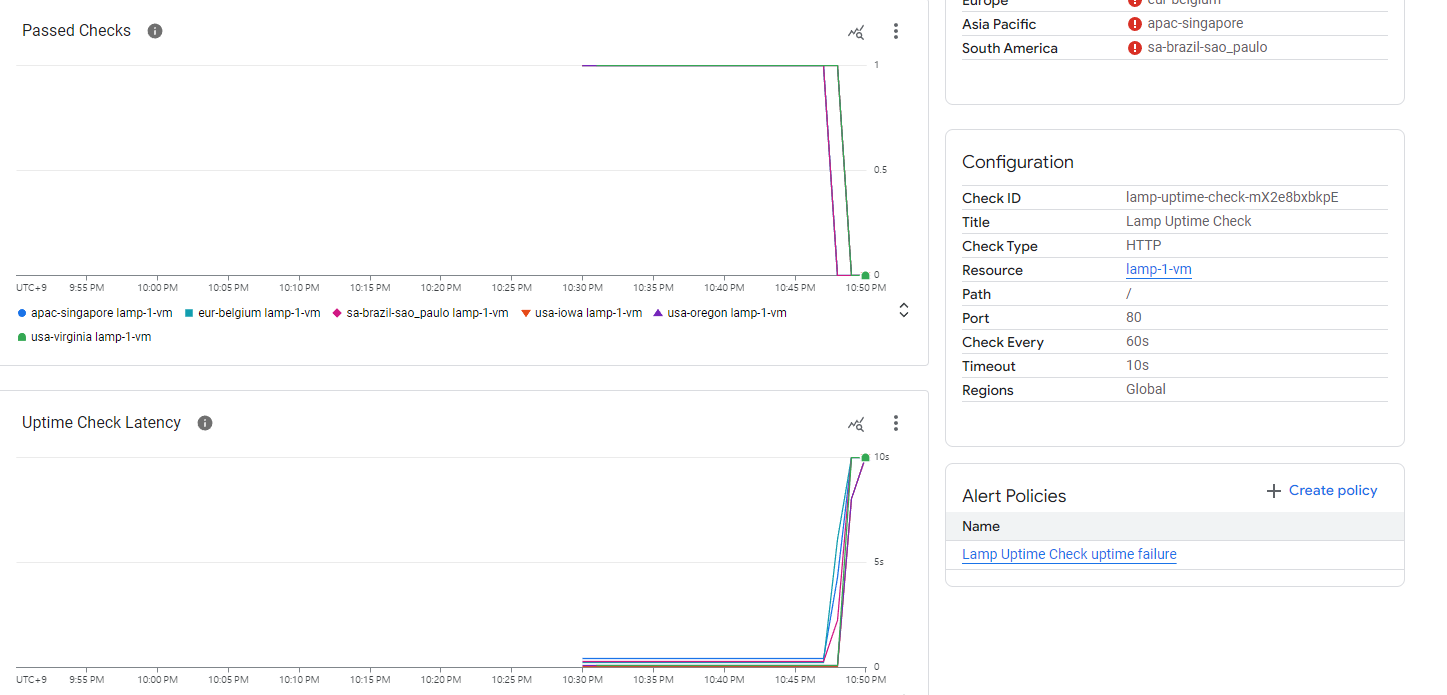
왼쪽 메뉴에 Alert를 클릭하여 알림이 트리거 되었는지 확인한다.


